Connect Gather to your AI assistant
Connect Gather to Claude or ChatGPT so you can look up projects, check what’s on order, review a budget and update your specs — just by asking, without leaving the conversation.
Where it works
Works with Claude (web and desktop), ChatGPT, and any AI assistant that supports connectors.
You’ll need a Gather account on a plan that includes API access. If you belong to more than one company, you’ll choose which one the assistant works with when you connect.
What you can do
Everything here happens with your own Gather permissions. If you can’t see something in Gather, the assistant can’t see it either.
Anything that changes your data is marked Flagged as a change below. Gather marks every one of those, and assistants use that mark to ask you before running it — but the prompt comes from your assistant, not from Gather, and some can be set to approve changes automatically. If you want to be asked every time, check that in your assistant’s settings before you connect. Reading is always automatic and never prompts.
Projects and rooms
- Find a project by name, or list everything you’re working on.
- See the rooms in a project, and what’s in each one.
- Create a project and set up its rooms in one go. Flagged as a change
- Delete a project, or remove a room. Flagged as a change — see how deleting works.
Items and specifications
- Search your items by room, status, supplier, schedule, type, item code or SKU. (Product Tags can be added and removed, but aren’t a search filter yet.)
- Check an item’s history — what changed, when, and who changed it.
- Read and add comments on an item.
- Add or update items, including price, markup, custom fields and quantities per room. Flagged as a change
- Change an item’s status as it moves through your process. Flagged as a change
- Archive or delete an item. Flagged as a change Deleting is permanent.
Purchase orders and deliveries
- See your purchase orders and filter by project, supplier or status.
- Check one order — what’s on it, what it costs, what’s been paid.
- Track deliveries — what’s shipped, what’s arrived, what’s late.
- Review an order’s history, including every revision issued.
- Create and update orders, add lines, record deliveries and log payments. Flagged as a change
- Move an order along — mark it acknowledged, request changes, cancel or close it. Flagged as a change
- Remove a line, a delivery or a payment record. Flagged as a change Permanent, and only while Gather still allows it.
The assistant cannot email a purchase order to your supplier. Sending a PO is deliberately left to you, in Gather. See what it can’t do.
Budgets
- Check a project’s budget — where it stands and how it’s estimated.
- See the items and costs that make it up, and the target for each room.
- See exactly what your client sees on their copy of the budget.
- Adjust the budget and choose which sections your client can see. Flagged as a change
- Move a budget to its working phase. Flagged as a change This can’t be undone.
- Clear a stuck move if advancing failed part way, so you can try again. Flagged as a change This is not an undo.
Budget markup is the one figure the assistant can read but not change — that one stays in the app for now.
Contacts and suppliers
- Look up people and organisations, and see which projects they’re on.
- Add or update contacts and suppliers. Flagged as a change
- Delete a person or an organisation. Flagged as a change Permanent.
Company setup
- Set up schedules, types and custom fields, so a new company can be configured by asking rather than clicking. Flagged as a change
Try asking
Once you’re connected, talk to it normally. Real examples:
Not sure where to start? Ask: “What can you do with my Gather account?”
Here’s what the answers actually look like:
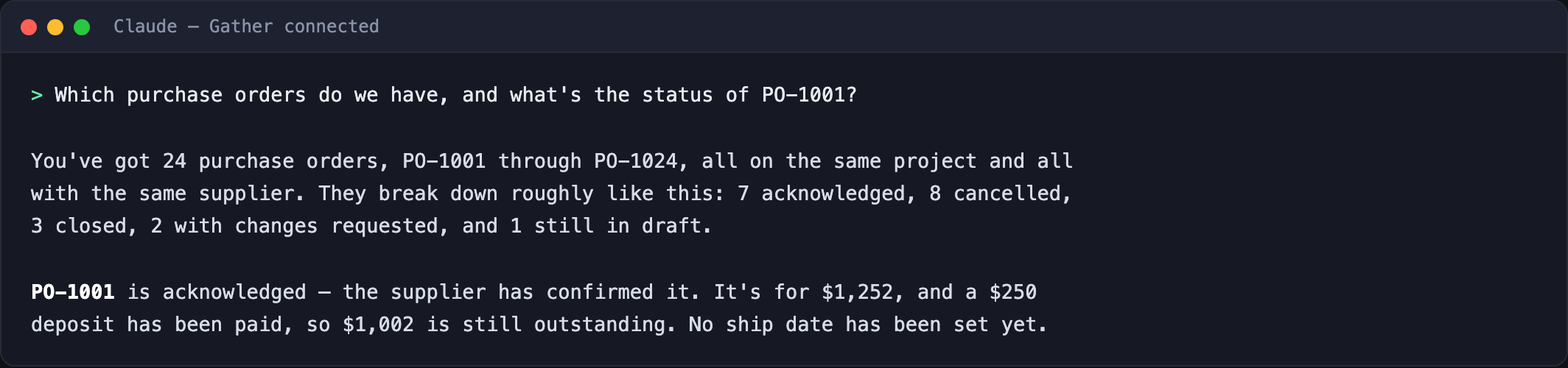
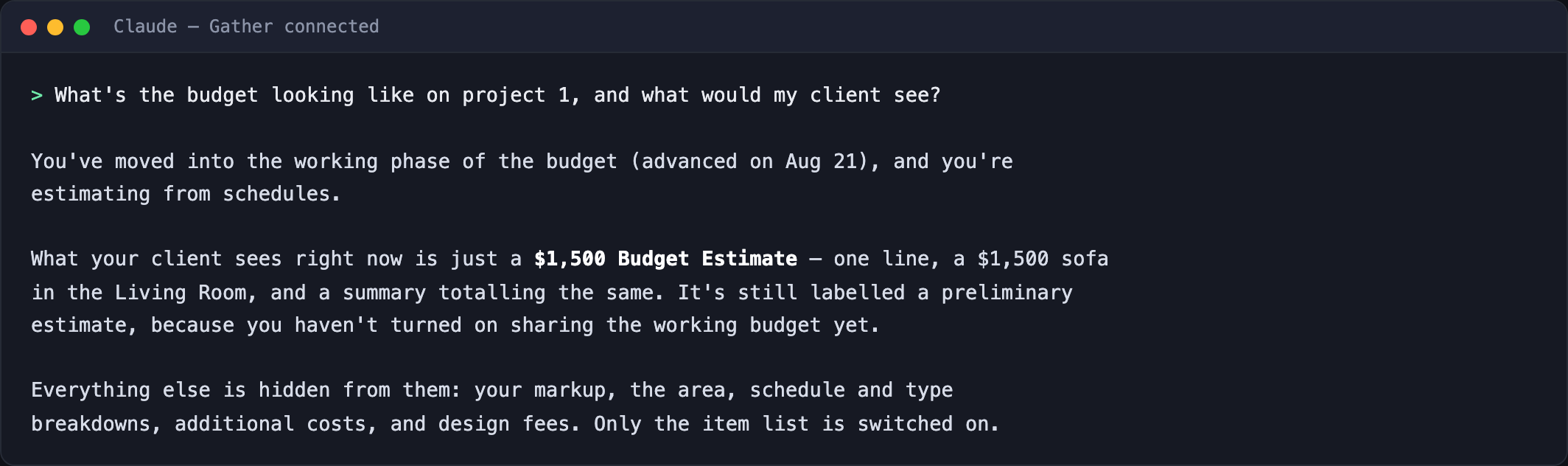
Real answers from a connected assistant, using a test company’s data.
Before you begin
- A Gather account on a plan that includes API access.
- An AI assistant that supports connectors — Claude or ChatGPT.
- If your company hasn’t used connectors before, your company owner may need to turn this on first.
You don’t need to prepare anything else. There’s no key to copy and no password to share — you sign in to Gather at the moment you connect, exactly like signing in to the web app.
Connect Gather
Claude (web or desktop)
- Open Settings, then under Customize choose Connectors.
- Click Add at the top right, then Add custom connector.
- Enter Gather as the name, paste this into Remote MCP server URL, and click Continue:
https://mcp.gatherit.co/mcp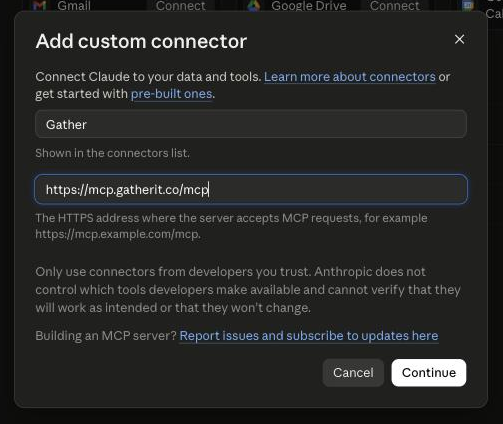
The Add custom connector dialog, filled in for Gather. - Claude checks the address and detects Gather’s sign-in setup on its own — you’ll see Detected next to the pre-selected options. Leave them as they are and click Add.
- Click Connect. A Log in with Gather page opens in your browser.
- Sign in, choose the company this assistant should work with, and review what it’s asking for. Click Approve.
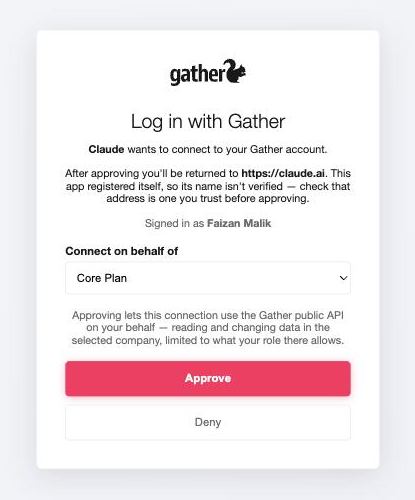
The Log in with Gather page, with the company picker. - Back in Claude, Gather shows Connected, with every tool listed under Tool permissions — reads in one group, changes in another, each set to ask for your approval. The Gather tools are now available in any conversation.
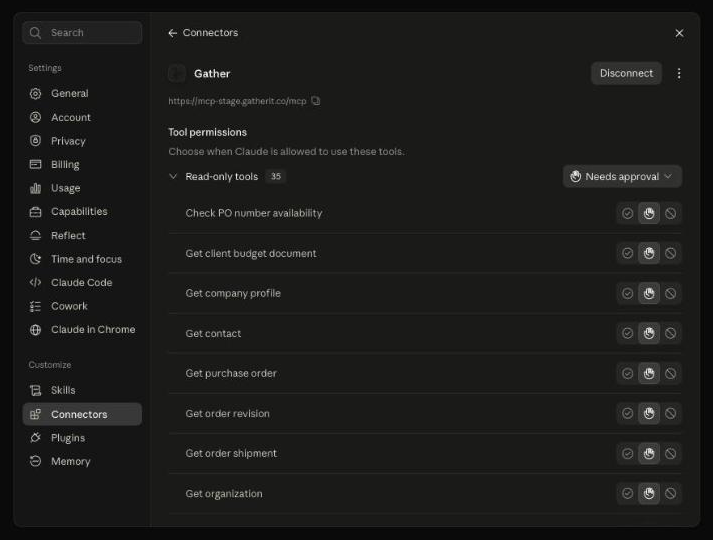
Connected — every Gather tool listed, with per-tool approval controls.
ChatGPT
Custom connectors in ChatGPT sit behind its Developer mode switch, which is available on paid plans. ChatGPT labels it “elevated risk” because it lets you add connectors OpenAI hasn’t reviewed — that warning is about unreviewed connectors in general, and it will show for Gather too.
- Open Settings → Security and login, scroll to Developer mode, and turn it on.
- Open Settings → Plugins → Browse plugins, then click the + at the top right.
- In the New Plugin dialog: name it Gather, paste the same address as the Server URL, and leave Authentication on OAuth:
https://mcp.gatherit.co/mcpTick I understand and want to continue, then click Create.
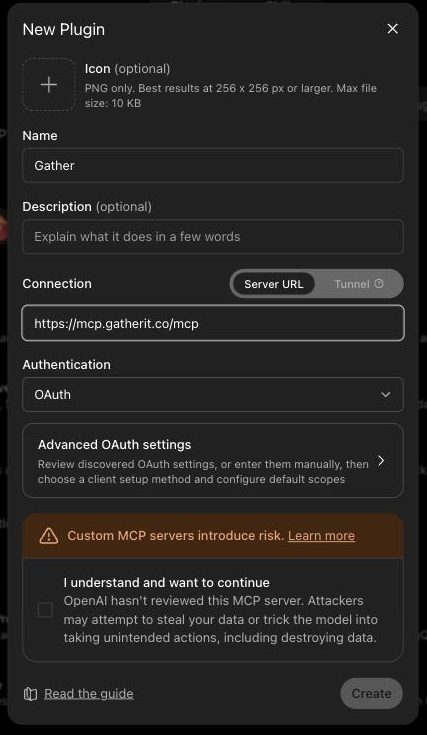
ChatGPT’s New Plugin dialog, filled in for Gather. - An Add Gather to ChatGPT screen appears. Click Sign in with Gather.
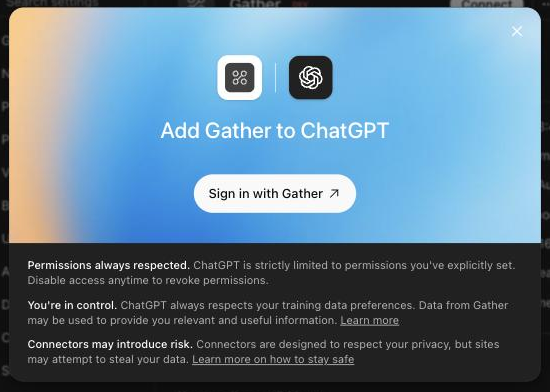
The Add Gather to ChatGPT screen. - The same Log in with Gather page opens as for Claude. Sign in, choose your company, and click Approve.
- ChatGPT shows Gather is installed, and the plugin page lists every Gather action — each labelled as read or write, with writes marked destructive where they are.
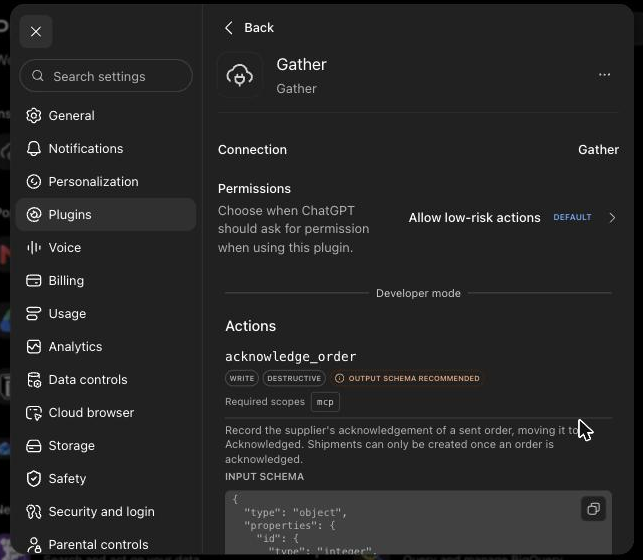
Gather’s actions in ChatGPT — each labelled read or write, with writes marked destructive.
If these menus look different on your account, OpenAI may have moved them — their connectors article tracks the current location per plan.
Any other assistant
Add a remote connector using the same address. When it asks you to authorise, the same Gather sign-in page opens. There’s nothing Gather-specific to configure — the address and the sign-in page are the whole setup.
Your data and your permissions
The assistant sees exactly what you see. It signs in as you, so it can’t reach a project, an order or a budget that you couldn’t already open yourself. If you’re a client user, you see the client budget document — not the designer’s costs or markup.
It only looks when you ask. Gather never syncs or copies your data in the background — nothing is fetched until a question needs it. What does come back is the full record for whatever was asked about, and it stays in that conversation with your assistant, under that provider’s storage settings.
Changes are flagged for your approval. Reading happens automatically. Everything that creates, updates, deletes or moves something is marked as a change that needs approval, and assistants use that mark to ask you before running it. Whether you actually see that prompt is your assistant’s decision, not Gather’s — most ask by default, and some let you or your administrator turn auto-approval on. If that matters to you, check your assistant’s settings before you connect.
Your password is never involved. You sign in on Gather’s own page. Your assistant never sees your password — only a limited, revocable pass that works with Gather alone and only for the one company you approved.
One connection, one company. If you work across several companies, connect once per company and pick which one each connection uses.
What it can’t do
Two deliberate limits:
- It can’t email a purchase order to a supplier. Sending a PO is a real message to an outside company and nothing can un-send it, so a person does that in Gather. The assistant can prepare the order right up to that point.
- It can’t download exports. Ask for an export and you’ll collect the file in Gather as usual.
And two things that work the same way they do in the app, rather than restrictions the assistant adds:
- Advancing a budget to its working phase stays one-way. Nothing moves it back — in the app or through the assistant. (If an advance gets stuck part way, the assistant can clear it so you can try again. That’s not an undo.)
- Your role still decides everything. If you can’t do it in Gather, you can’t ask the assistant to do it either.
It can delete things — here’s how that works
The assistant can delete the same things you can delete in Gather: items, rooms, projects, people, organisations, and the lines, deliveries and payment records on an order.
Four things keep that safe:
- Deleting is flagged as destructive. Assistants use that flag to confirm before running it, so you normally see exactly what’s about to go. It is the assistant that shows the prompt, not Gather — if yours is set to approve changes automatically, it won’t ask. Check that setting before connecting.
- Your role still applies. If your role can’t delete something in Gather, asking won’t change that.
- Gather’s own rules still apply. A line can only be removed while an order is still a draft. A delivery can only be removed before it’s marked delayed or received. The default “Other” room can’t be removed at all.
- Not everything is permanent. Deleting a project hides it from lists and everyday use but keeps the underlying data rather than destroying it, so it’s worth contacting support before assuming it’s gone. Removing a room asks what should happen to the items in it, and the usual answer archives them rather than destroying anything.
Turning it off
- Stop one assistant using Gather: remove the Gather connector in that assistant’s settings. That assistant can no longer reach your data.
- If you think a connection was misused: contact Gather support. Removing the connector covers the ordinary case; support can advise on anything broader.
- Leaving the company? A connection acts as you, with your role, in one company — so it can never do more than your own account can. Ask an admin to review your account access as part of offboarding.
If something goes wrong
- It says it can’t reach Gather, or asks you to sign in again
- Your access expired or was revoked. Reconnect the Gather connector in your assistant’s settings, approve again, and carry on. Your conversations aren’t affected.
- The sign-in page won’t accept your account
- You’re probably signing in with an account that isn’t an active member of a company with API access. Check with your company owner, or try the account you use for the Gather web app.
- “Your role does not permit this action”
- Your Gather role doesn’t allow that change. This is the same restriction you’d hit in the app — ask an admin, or use an account with the right role.
- “Orders are not available to client users”
- Purchase orders are a designer-side feature. Client users can see their budget document, not the order surface.
- “Budgets is not available for this project”
- Either your plan doesn’t include Budgets, or the project was created before Budgets existed. Projects created earlier never gain a budget, even after an upgrade — you’d need a new project.
- “Rate limit exceeded”
- Too many requests arrived at once — Gather allows 120 a minute. Wait a moment and ask again.
- It answers about the wrong company
- Each connection is tied to one company. Remove the connector and add it again, choosing the right company at sign-in.
Questions people ask
- Can it change my data without asking?
- Gather marks every change — creating, updating, deleting — as a write that alters your data, and assistants use that mark to decide whether to prompt you. But the prompt is shown by your assistant, not by Gather, and some can be configured to approve changes automatically. If you want to be asked every time, check that in your assistant’s settings. Reading is always automatic.
- Can it send a purchase order to my supplier?
- No — that’s deliberate. You send POs from Gather.
- Can my colleagues see my conversations?
- Not through Gather — conversations live in your AI assistant account and their content is never sent to us. Whether anyone else in your organisation can reach them, such as a workspace administrator, is governed by your AI provider’s settings rather than by Gather.
- Can it see projects I’m not on?
- It has exactly the access you have in Gather — no more, but no less. If your role lets you see the company’s whole project list in the app, the assistant sees that same list. Client users are the exception: they only ever reach the projects they’ve been given.
- Does it work if I’m in more than one company?
- Yes — connect once per company and choose which one each connection uses.
- What if my client uses it?
- A client user sees their budget document, and only once you’ve actually shared a section of it — exactly as in the app, where the tab stays hidden until then. Purchase orders, designer costs, markup and internal notes aren’t in what they can reach at all.
- Is my Gather data used to train AI models?
- Gather doesn’t use your connector activity to train any AI model, and doesn’t pass your data to anyone for that purpose. What your AI provider does with the conversation is their policy, not ours — it depends on the product, the plan and your privacy settings. Business and enterprise plans generally exclude training by default; personal plans often have a setting you control. Check your provider’s data controls if this matters to you.
- Can I use it on my phone?
- Yes, wherever your assistant runs. The connection belongs to your account, not a device.
For IT and administrators
The connector is a hosted service that talks to Gather’s public API on the signed-in user’s behalf. It uses the Model Context Protocol, the emerging standard for connecting AI assistants to business systems.
- Sign-in uses OAuth 2.1 against Gather. The assistant receives short-lived, revocable credentials scoped to one company. It never receives a password, and never holds a long-lived API key.
- Authorisation is Gather’s, not the connector’s. Every request is checked against the signed-in user’s role and the company’s plan entitlements, by the same rules the web app applies. The connector adds no permissions of its own.
- Feature gating applies. Orders require the procurement entitlement; Budgets require the plan feature and a project created in the phase era. A company whose entitlement lapsed keeps read access to data it already holds.
- Rate limits match the public API: 120 requests per minute, bursting to 10 per second.
- Audit. Writes are recorded in Gather’s audit log against the acting user, and API usage is tracked like any other public-API traffic.
- Revocation. Removing the connector stops that assistant reaching Gather. A connection also carries the user’s own role, so it can never do more than that account can — if an account’s access changes in Gather, what the connection can reach changes with it. For anything broader, contact support.